Find answers across your private documents in plain language — without uploading them. Founder Access is required. Download MemoRay for Windows first, then activate MemoRay inside the app with the email address and license key sent to you.
Agreement is required before the MemoRay download can start.
This download link is unavailable. It may have expired, been replaced, or reached its download limit. Open your latest MemoRay Founder Access email, or contact support for help.
MemoRay is signed by RayAI LLC. Because MemoRay is a new Founder Access app, Microsoft Edge or Windows Defender SmartScreen may still show a warning while reputation builds.
Before you continue, check:
You downloaded MemoRay from the official MemoRay download page.
The file name is MemoRay-Setup-Windows.exe.
The publisher shown by Windows is RayAI LLC.
The SHA256 checksum on the download page matches the downloaded file if you choose to verify it.
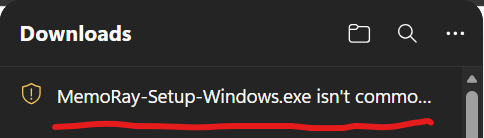
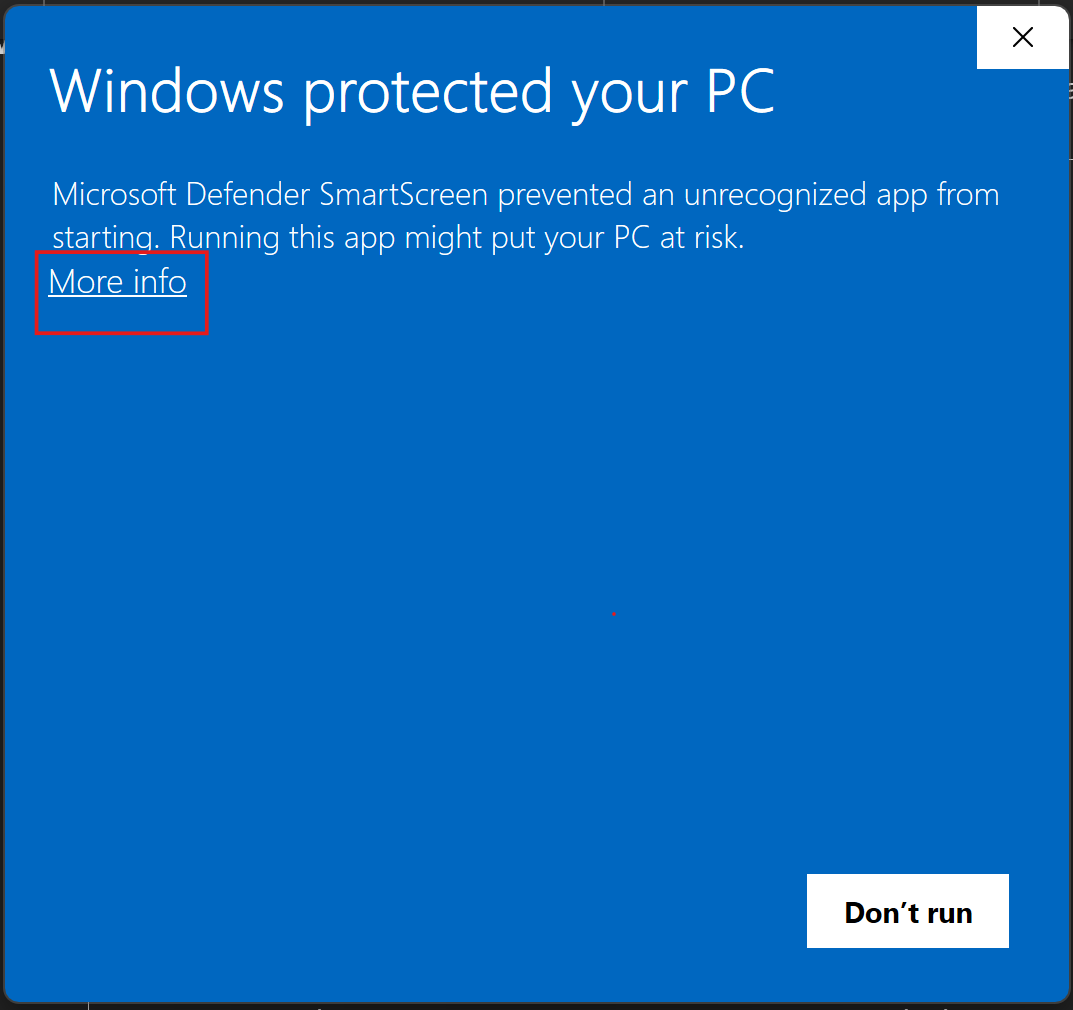
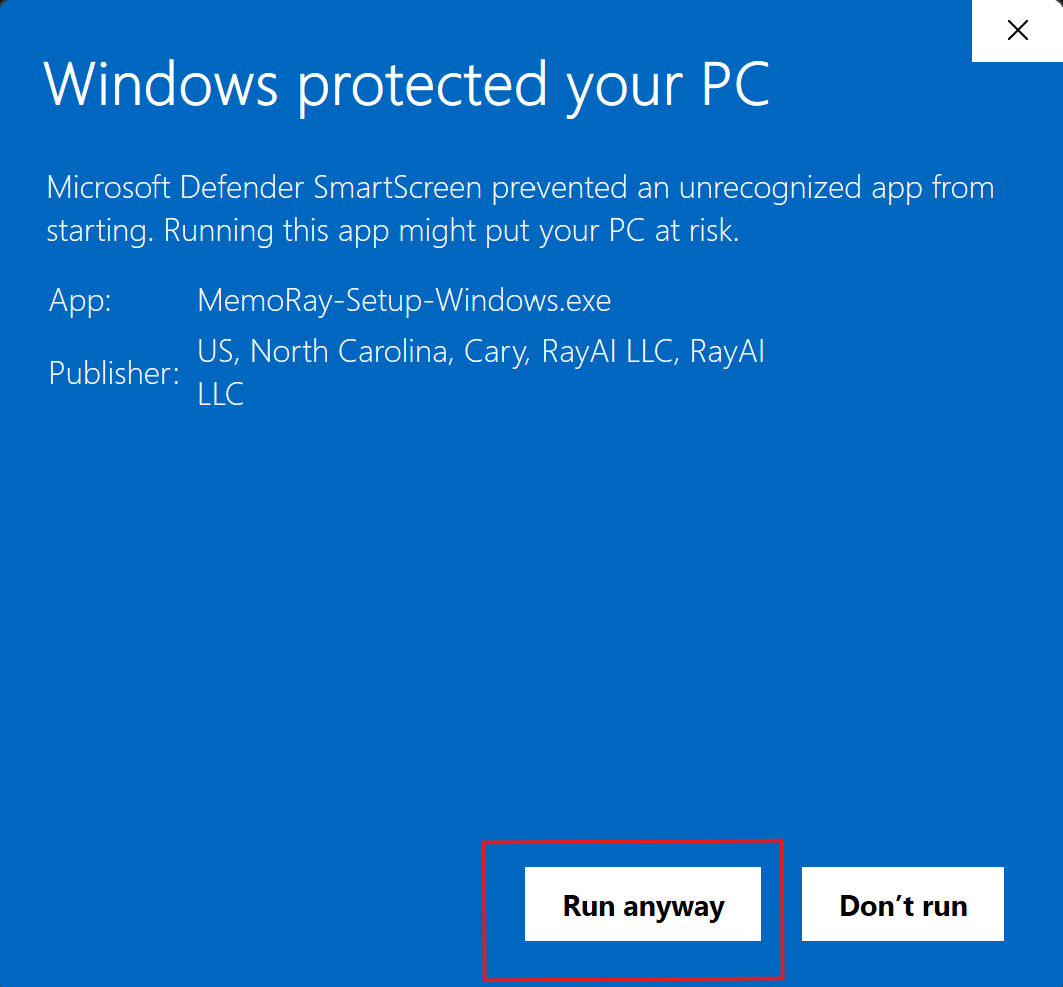
If those checks match and you intended to install MemoRay, you can choose Keep, Keep anyway, More info, and then Run anyway when Windows offers those options. If anything looks different, stop and open the support form.
Code signing proves the installer is published by RayAI LLC and has not been modified after signing. SmartScreen reputation is separate from code-signing validity.
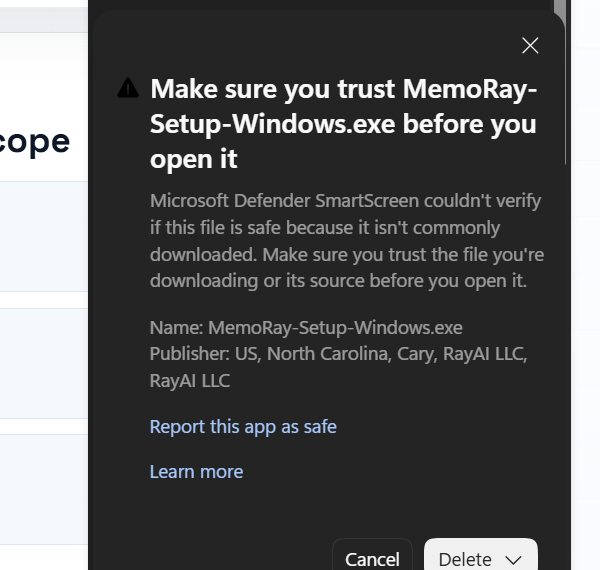
These screenshots show examples of Windows security prompts; yours may look different.
We sign our MemoRay 0.6.0 installer as RayAI LLC. Our signing certificate still lists our former location in Cary, North Carolina, while our current business contact address is in Fort Lauderdale, Florida. Seeing Cary in the publisher details is expected for this release.
Before running the installer, verify that the publisher is RayAI LLC and its digital signature is valid. If the signature is missing or invalid, or the publisher is different, do not run it.Contact us if you need help.
Edge may say the installer is not commonly downloaded while reputation builds.
About “Report this app as safe”
Microsoft Edge may offer this option to send feedback to Microsoft. Reporting is optional and is not required to install or use MemoRay. Only submit a report if it reflects your own judgment. If you are unsure about a download or notice anything unexpected, stop and contact MemoRay Support.
Windows SmartScreen may first show More info.After More info, verify Publisher is RayAI LLC before choosing Run anyway.
Setup
Install MemoRay for Windows, then activate inside MemoRay.
Keep your access email and license key nearby. You will use both after MemoRay is installed. If you choose to use Protected documents, you will create a separate password inside MemoRay.
Upgrading from an earlier MemoRay version
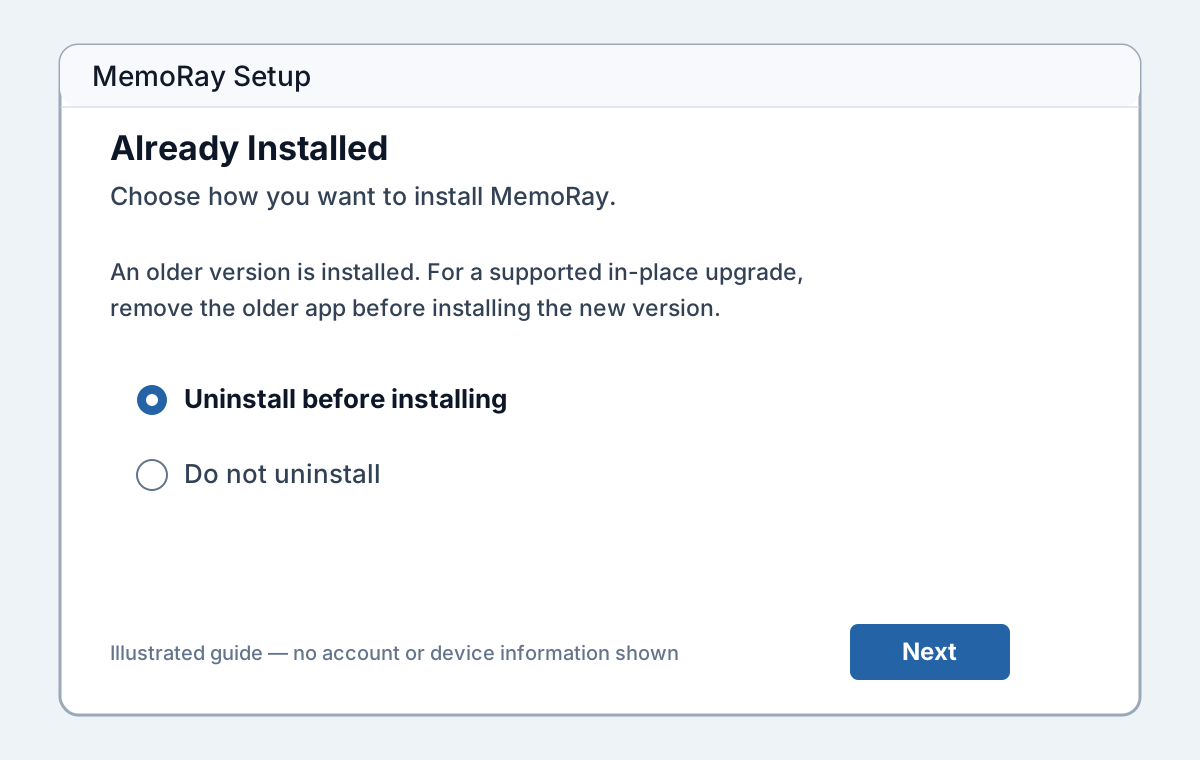
Choose Uninstall before installing when Setup detects the older app.
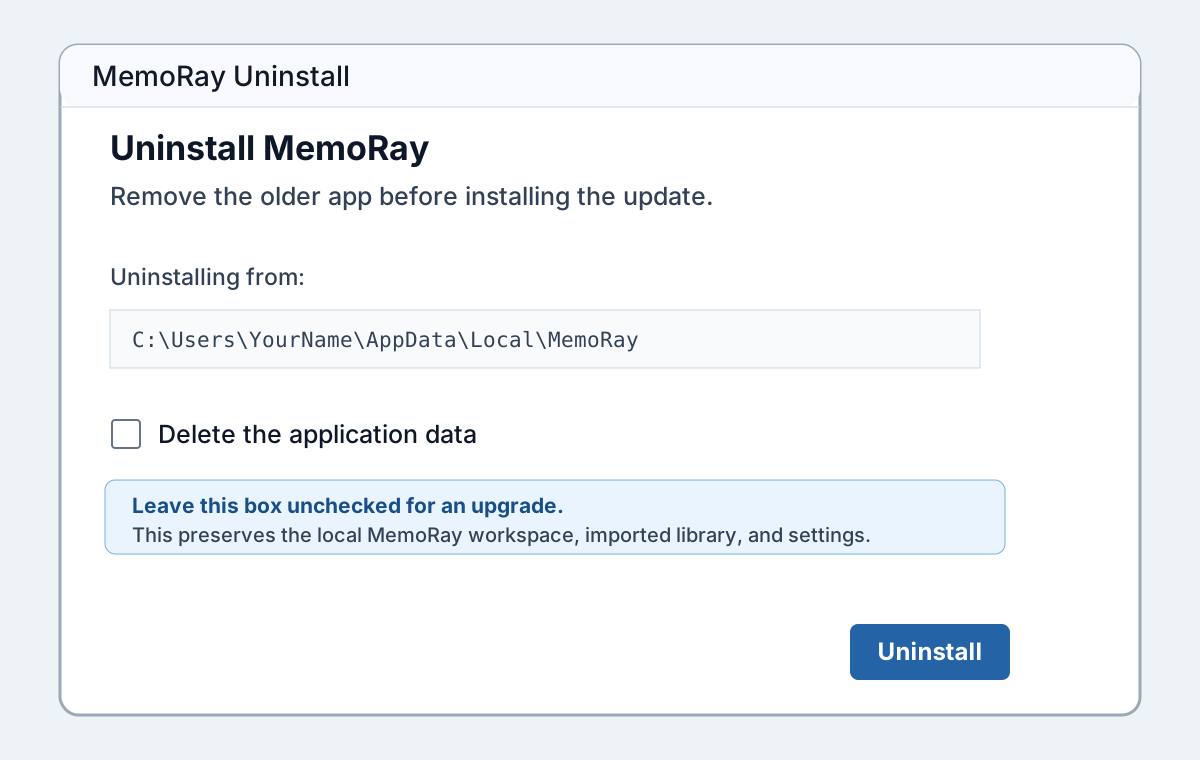
During uninstall, leave Delete the application data unchecked. This preserves the local MemoRay workspace, imported library, and settings.
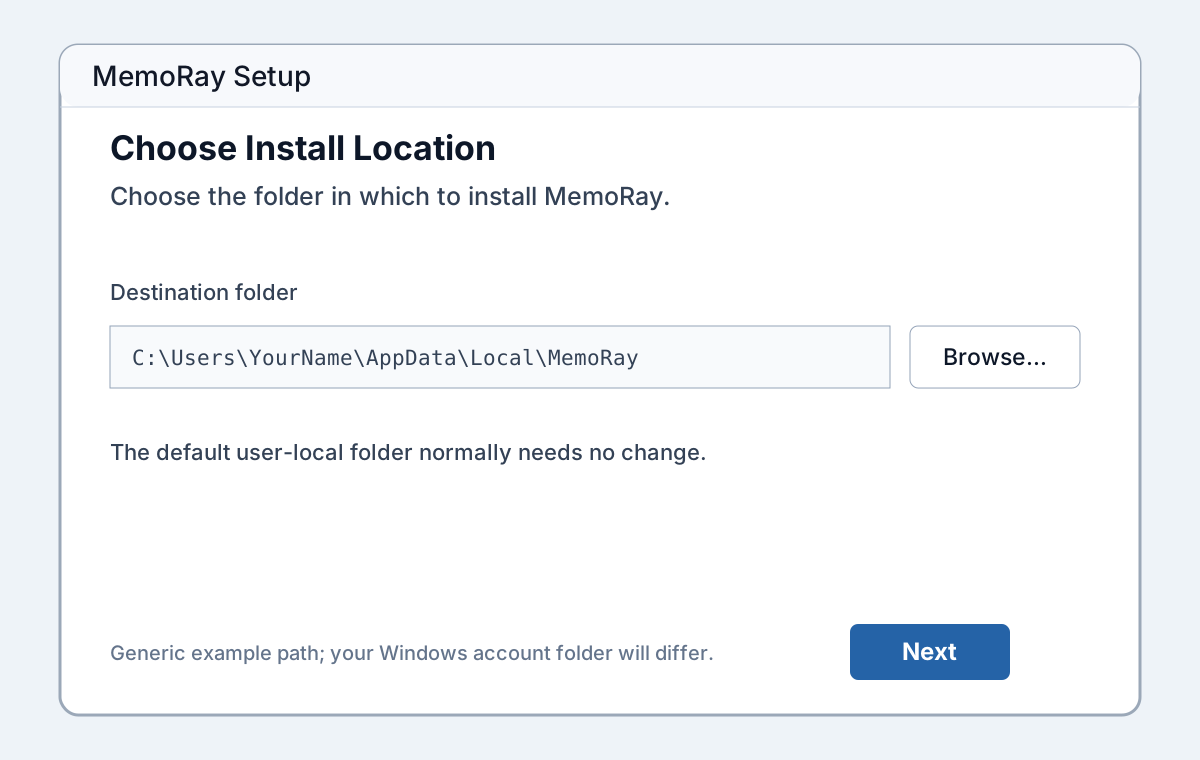
Continue with the default user-local install folder unless you have a specific reason to change it.
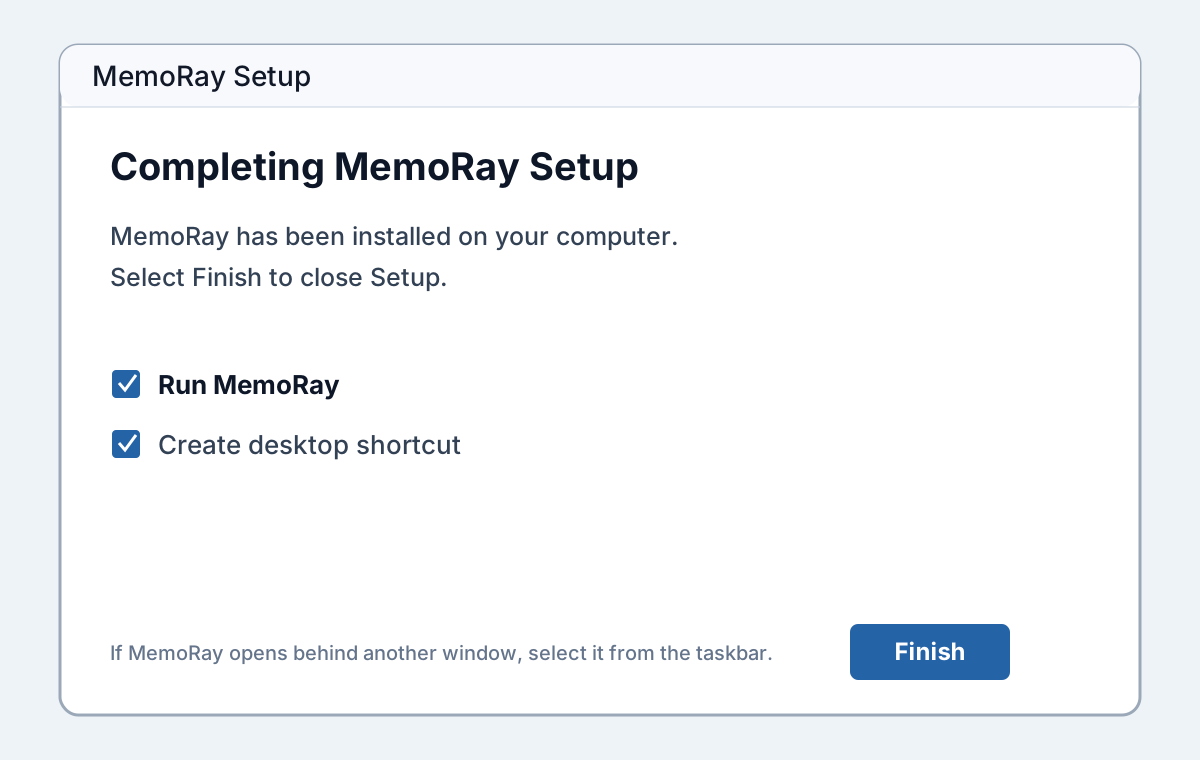
Finish Setup with Run MemoRay selected. If MemoRay opens behind another window, select it from the Windows taskbar.
MemoRay may then ask for the current Protected Documents password to update protected storage and may ask for one restart. Keep MemoRay open while that update runs. Do not delete application data, remove the workspace, or downgrade as part of a normal update.
Forgotten your Protected Documents password? MemoRay cannot recover a forgotten Protected Documents password or migrate that Protected content without it. The legacy storage-update dialog has no forgotten-password route; access to Settings recovery before that update completes has not been verified. Read the recovery and destructive fresh-start guidance before removing any data. A clean install has been tested; removing data from every existing installation is not a guaranteed recovery procedure.
1. Let Setup remove the older app before installing the update.2. Keep Delete the application data unchecked to preserve your local library and settings.3. The default user-local destination normally needs no change.4. Finish Setup and run MemoRay. Use the taskbar if it opens behind another window.
Install instructions
Select Download MemoRay after entering your license key.
Run the installer on your Windows device.
Open MemoRay after installation completes.
Activation instructions
Open MemoRay and enter your approved email and Founder Access license key. Protected documents use a separate password created locally inside MemoRay.
Support
For download, installation, or activation help, submit a support request through MemoRay Support.
Network access is limited to license activation/validation, app updates, and support forms you choose to submit.
MemoRay processes imported documents, text reading, search, and Ask MemoRay locally on your Windows device. Network access is used for Founder Access license activation, license validation, app update checks, and support forms you choose to submit.
Document content is not sent to MemoRay licensing or update services.
If you submit a support form, the message and attachments you choose are sent to MemoRay Support. Review them first and remove private document content, passwords, and license keys.
Your Windows device
Imported documents
Text reading
Search locally
Ask MemoRay
Answers with sources
Documents stay here.Core document processing does not send document content to MemoRay services.